Salesforce Marketing Cloud Integration: What It Connects and How to Set It Up

Salesforce Marketing Cloud integration means connecting your email and journey tool to the Salesforce CRM where your leads, contacts and customers already live. Done right, a new lead in Salesforce can start an email sequence on its own, and every open and click shows up on the lead’s record for your sales staff. Done wrong, you get duplicate contacts, emails sent to people who opted out and leads nobody follows up on. We are a Delray Beach web design studio that also builds email and CRM systems, and this guide explains the integration in plain terms for owners who need to decide what gets built and who builds it.
TL;DR
- The standard connector is called Marketing Cloud Connect. It links Marketing Cloud Engagement to a Salesforce CRM org such as Sales Cloud or Service Cloud.
- It does two jobs: it copies CRM records into Marketing Cloud for sending, and it writes email activity back to the CRM record.
- Before you start you need the right Salesforce editions, the right licenses, and a clear rule for how each contact is identified.
- Setup is an install, a permissions step, a field-matching step and a test send. The test can take up to an hour to show results.
- Most problems come from decisions made before installation: which records sync, how often, and who is allowed to see what.
Table of Contents
- What a Salesforce Marketing Cloud integration actually connects
- What the integration can do for a service business
- Two ways data moves between the systems
- What you need before you start
- Setting it up, step by step
- How to test the connection
- Common problems and where they come from
- Does a small Florida business need this?
- What to ask when hiring someone to build it
- Our view on integration projects
- Let us build the connection for you
- FAQ
- Sources
What a Salesforce Marketing Cloud integration actually connects
Salesforce sells a CRM (the system that holds your leads, contacts, deals and service cases) and Marketing Cloud (the system that sends email, text messages and automated journeys). They are separate products with separate databases. Without a connection, someone exports a spreadsheet from one and imports it into the other. That is slow, and the data is stale the moment it lands.
Marketing Cloud Connect is the standard link between the two. According to Salesforce’s setup guide, it connects Marketing Cloud Engagement with a Salesforce CRM org so the two share data. Once linked:
- Your sales and service staff can see email activity on the lead or contact record.
- Your marketing staff can send using audiences built from Salesforce data.
- Salesforce reports and campaigns can be used to pick who gets a message.
For a service business, the practical meaning is simple. A person fills in a form, lands in the CRM as a lead, gets the right welcome email within minutes, and your salesperson sees whether that person opened it before making the call.
What the integration can do for a service business
Salesforce’s own Marketing Cloud Connect overview lists the main uses. In everyday terms, they look like this.
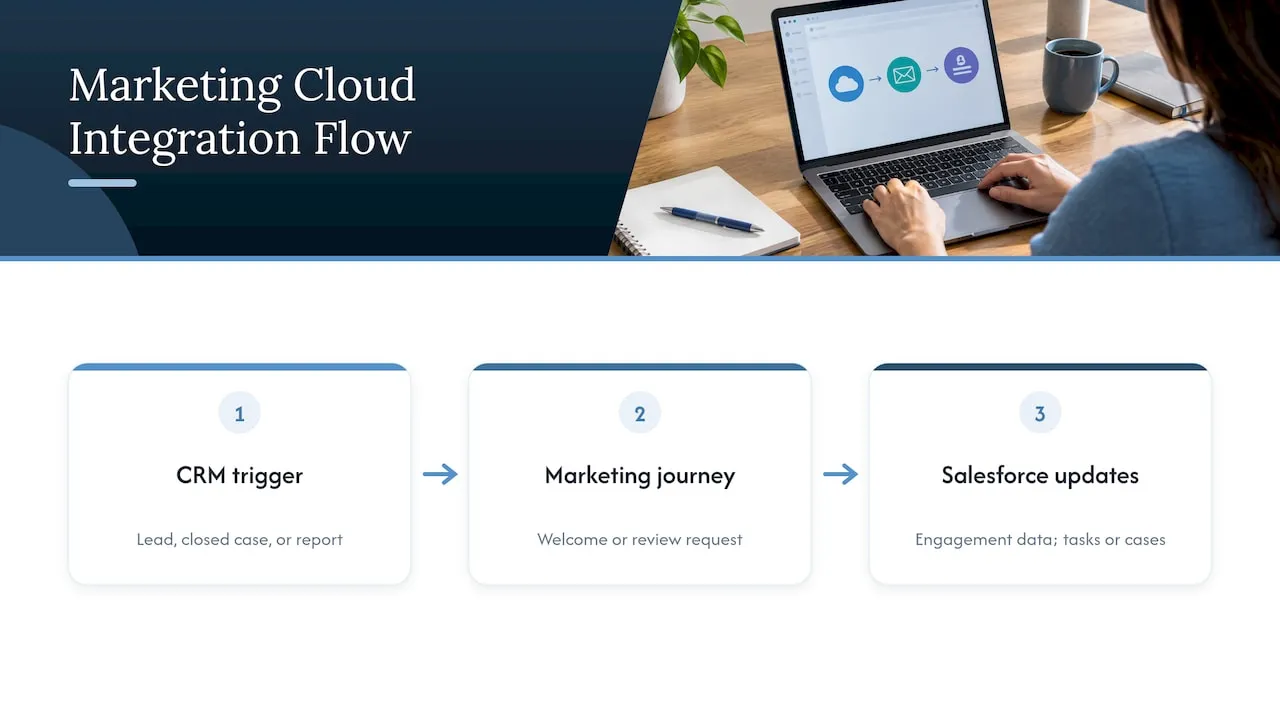
Start a sequence from a CRM event. A new lead is created, or a service case is closed, and that event starts an automated journey. A closed case can trigger a thank-you and a review request. A new lead can trigger a welcome series.
Use CRM reports for targeting. A report in Salesforce, such as past clients who have not booked in a year, becomes the audience for a campaign.
Send results back. Engagement data can be pushed into the contact’s profile in Salesforce, so the person calling the lead sees what that lead has already received.
Create follow-up work. Journeys can update Salesforce campaigns and create tasks or cases, so a lead who clicks a pricing link can generate a task for a salesperson.
That last item matters most if your problem is slow lead follow-up. A lead that sits for a day before anyone reacts is often a lost lead. A connected system puts the right task in front of the right person while the lead is still warm.
Two ways data moves between the systems
There are two broad patterns, and choosing between them is the first real decision.
Continuous sync through the connector
With Marketing Cloud Connect, an administrator picks which Salesforce objects, fields and records to bring across, and sets a schedule. Salesforce’s training material explains that Marketing Cloud pulls the chosen data into synchronized data extensions, which keep the source structure and relationships. You can bring all records, only records created since a date, or only records that match a yes/no field. The schedule can run in minutes or hours.
Scheduled file transfers
The second pattern is file based. As described in Salesforce’s developer integration scenario, CRM data is exported as a CSV file, delivered to a transfer location, and loaded into a Marketing Cloud data table on a schedule. After that, the usual tools for segmenting and sending take over.
Which one fits? Salesforce’s own guidance on syncing data back to the CRM says batch methods are stable for large periodic updates but run on a schedule, not in real time. It also says the journey-based method suits quick, behavior-triggered updates but is not meant for bulk updates, because of usage limits and the load on journeys. In plain terms:
| Need | Better fit |
|---|---|
| Nightly refresh of thousands of records | Scheduled batch transfer |
| A lead clicks a link and a task must appear now | Journey-based update |
| Salesforce reports used as email audiences | Connector sync |
| One-time cleanup or large historical load | Scheduled batch transfer |
Most service businesses end up using more than one of these. The point is to choose on purpose, by the speed each process needs.
What you need before you start
The installation is the easy part. The prerequisites are where projects stall. Salesforce’s setup guide tells you to confirm the following before anything is installed.
Editions and licenses
On the CRM side, the listed editions are Unlimited, Enterprise and Performance, or a Developer Edition sandbox. On the Marketing Cloud side, the listed Engagement editions are Core, Advanced, Agency, Enterprise 1.0 Lock and Publish, Enterprise 2.0, Reseller, or a sandbox. If your Salesforce plan is a lower tier, the connector may not be available to you until you upgrade. Check this first, because it changes the budget. For background on who normally owns these settings inside a company, see this overview of what a Salesforce administrator does.
A rule for identifying each person
Every contact in Marketing Cloud needs a unique key. Salesforce specifies that the key should be based on the Salesforce Contact or Lead ID. Salesforce Help adds that data extensions need the 18-digit ID as the subscriber key, an Email Address field type if you want tracking to return to the CRM, and field names without question-mark or percent characters. Choosing email address as the key instead is a common shortcut that later causes duplicates, because the same person can appear as a lead and as a contact.
Two dedicated connection users
The setup needs a connection user in Salesforce and one in Marketing Cloud, plus admin access and linked accounts for each person who will send from Salesforce. Plan these accounts ahead of time rather than borrowing a staff member’s login. When that person leaves, the connection should not leave with them.
Opt-out visibility
People who use the connector need view access to the standard Email Opt Out field on both the Lead and Contact objects, with field-level security set for the right profiles, according to Salesforce. This is the field that keeps you from emailing someone who asked to stop. Getting it wrong is both a customer-trust problem and a compliance problem.
Contact counts
Every synchronized lead or contact counts as a contact in Marketing Cloud’s Contact Builder even if you never email them, Salesforce notes. If your pricing depends on contact volume, the scope of your sync is a cost decision. Sync the records you will actually message.
Setting it up, step by step
The sequence below follows Salesforce’s CRM setup guide. At each step we note where it tends to go wrong and what we handle on the build side.
1. Plan the data before installing
Write down which objects sync (Leads, Contacts, maybe Accounts or custom records), which fields marketing needs, and how often the data should refresh. Where it goes wrong: syncing everything because it is easy, then paying for and maintaining thousands of irrelevant contacts. Our Email & CRM Development work starts from your actual workflow, so the sync is scoped to the messages you plan to send.
2. Turn on the required Salesforce setting and install the package
Enable Custom Platform Events in Salesforce, then install the latest Marketing Cloud Connect managed package, in a production org or a sandbox, for admins only. Where it goes wrong: installing straight into production with no sandbox rehearsal. Use a sandbox first for anything beyond a trivial setup.
3. Configure page layouts and permissions
Add the Marketing Cloud components to the CRM page layouts your staff use, so email activity appears on the record. Set permissions so only the right profiles can see and send. Where it goes wrong: components exist but nobody can see them, and the team decides the integration “doesn’t work.”
4. Create the CRM connection user
Create this user in Salesforce with the relevant Marketing Cloud Engagement permissions, plus a permission set used for the connection and sign-in. Give it a role-based name, not a person’s name.
5. Set Email Opt Out visibility
Confirm the Email Opt Out field is visible on Lead and Contact for every applicable profile, as covered above. Skipping this step is the most expensive shortcut in the whole project.
6. Connect the Marketing Cloud side and choose your synchronized data sources
Link the Marketing Cloud account to Salesforce, then pick the objects, fields, records and schedule. One detail to plan around: Salesforce says a synchronized data source cannot be deleted once synchronization starts. You can pause it, but the resulting data extension stays in the account. Decide the scope carefully the first time.
7. Map the fields
Match Marketing Cloud subscriber attributes to Lead and Contact fields. This is what lets an email say “Hi Maria” using the name stored in the CRM. Where it goes wrong: a mismatched or empty field produces emails that open with a blank name. Our modular email template systems are built with fallback content for exactly this case, so a missing field does not reach your customer.
8. Test before anyone sends for real
See the next section.
How to test the connection
Salesforce’s testing guide gives a clear routine:
- Map the subscriber attributes to the Lead and Contact fields.
- Create a test lead in Salesforce and build a filtered report that finds it.
- Send an email from Salesforce CRM to that test lead.
- Confirm the email arrives with the first and last name filled in correctly.
Delivery can take up to an hour, because the processing is asynchronous. Do not assume a failure at minute ten. Wait the full hour before changing settings, because changing things mid-process makes the result harder to read.
After the first test passes, also test the unhappy paths: a lead with no first name, a contact marked as opted out, and a record with a long company name. Then review how the email looks on a phone. Our responsive email QA checklist covers that last pass.
Common problems and where they come from
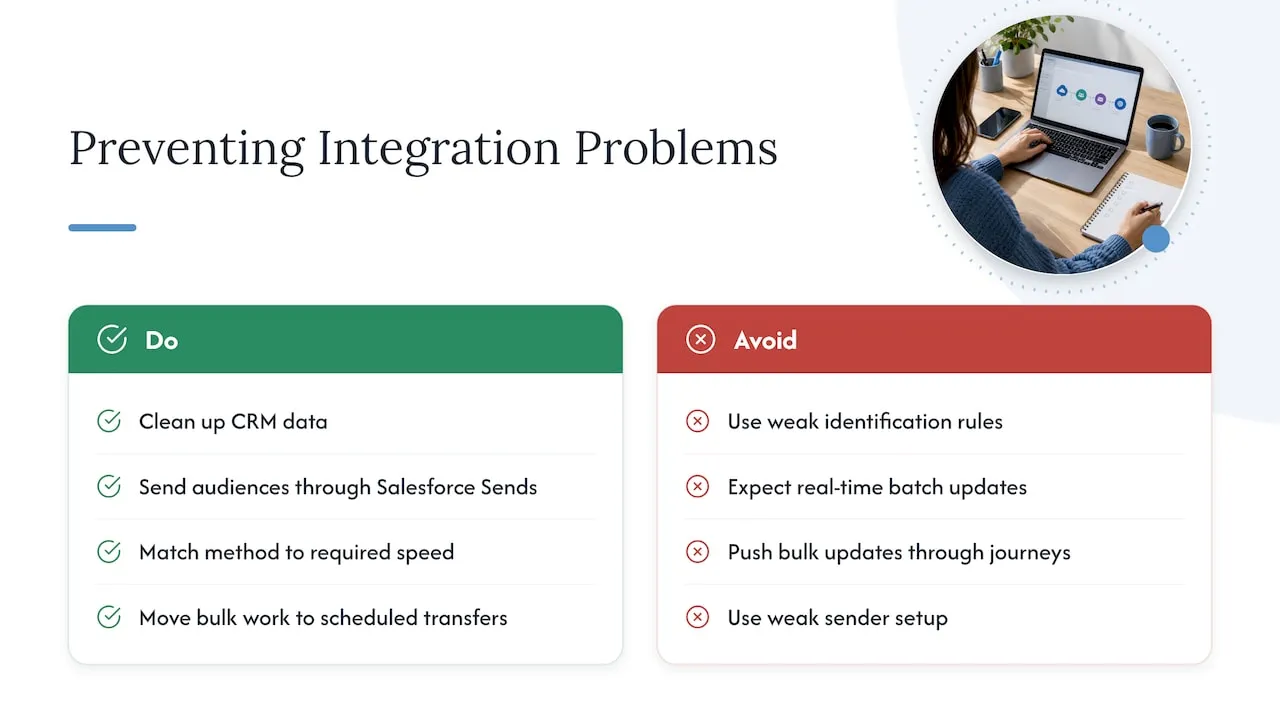
Duplicate people. The same person exists as a lead and a contact, and receives two emails. The cause is usually a weak identification rule or messy CRM data. A clean-up comes first: see our guide to CRM data hygiene.
Activity not showing on the record. The audience was not sent through Salesforce Sends, or the data extension lacks the Email Address field type. Salesforce Help says tracking data returns to Contact or Lead records when the audience was sent through Salesforce Sends.
Data that is hours old. Someone expects real-time updates from a batch schedule. Match the method to the speed the process needs, using the table above.
Large imports slowing journeys. Bulk updates pushed through journeys create load. Move bulk work to scheduled transfers.
Emails landing in spam. A connected system sends faster, so a weak sender setup becomes a bigger problem. Our piece on email deliverability lists the first fixes.
Does a small Florida business need this?
Honest answer: it depends on the size of your lead flow and the tools you already pay for. Marketing Cloud Connect requires higher Salesforce tiers and a Marketing Cloud license, so it fits businesses that already run Salesforce and want email, journeys and sales activity in one picture. A Boca Raton real estate team with hundreds of inquiries a month, a Miami multi-location practice, or a Fort Lauderdale home services company with a long sales cycle are typical examples.
If you are earlier than that, the same goal, a lead that gets a fast, relevant response and a salesperson who sees what happened, can start with a well-built website and a clean lead route. That is where we usually begin. If you are already on Salesforce, the integration is the next layer.
What to ask when hiring someone to build it
You do not need to understand the technical details. You need to hear clear answers to business questions:
- Which records will sync, and why those?
- How will each person be identified so no one is duplicated?
- How will opt-outs be protected?
- How fast should a new lead get its first message, and which method delivers that speed?
- Who owns the connection accounts when staff change?
- What happens to the emails if a field is empty?
If a provider cannot answer these in plain language, the project is not scoped yet. Our Salesforce Marketing Cloud migration checklist and marketing automation audit show how we structure those questions. If you are weighing platforms before committing, the Braze vs Salesforce Marketing Cloud comparison is a good place to begin.
Our view on integration projects
We build Salesforce Marketing Cloud and CRM systems for service businesses, and the pattern is consistent: the connector is the small part of the project. The business decisions around it decide whether it pays off.
A lead that gets a clear answer fast, and a salesperson who knows what that lead already read, are worth more than any dashboard. So we begin with your real workflow: how a lead arrives, who answers, what is sent, and what should happen when nobody responds. Then we build the sync, the templates and the journeys to fit that path.
We do not use templates or page builders for websites, and we apply the same thinking to email and CRM. Modular email templates, lead routing and journey automation are built around how your business actually works, not around a default setup. Our founder spent years building lifecycle systems at large consumer brands, and that discipline in planning, testing and documenting carries into every small business project we take on.
If your website and your CRM do not talk to each other, you lose leads in the gap between them. Fixing that gap is the work.
Jeremy
Let us build the connection for you
Forefront Industries is a Delray Beach web design studio. Our Email & CRM Development service covers enterprise-grade CRM and email system engineering on Salesforce Marketing Cloud and Braze, including lifecycle journey automation and lead routing. You can read more on our Salesforce Marketing Cloud development page. Local businesses can also see our Delray Beach Email & CRM Development | Forefront Industries and Miami Email & CRM Development pages.
If the website that feeds your CRM is part of the problem, we build fully custom-coded sites designed to convert, and we keep them running through our website maintenance plans: Managed Hosting at $99 per month, Webmaster at $250 per month and Performance Plus at $750 per month.
FAQ
What is Marketing Cloud Connect?
It is the standard Salesforce connector between Marketing Cloud Engagement and a Salesforce CRM org such as Sales Cloud or Service Cloud. It lets the two share data, so CRM records can be used for sending and email activity can be viewed on CRM records.
How long does a Salesforce Marketing Cloud integration take?
The install and connection steps are short, but planning the data, cleaning records and testing take most of the time. A test email can take up to an hour to arrive because the processing is asynchronous. The overall timeline depends on how many objects, fields and journeys you need.
Do I need a specific Salesforce edition?
Yes. Salesforce lists Unlimited, Enterprise and Performance editions, or a Developer Edition sandbox, for the CRM side. Marketing Cloud Engagement must also be on a supported edition. Confirm both before you plan a budget.
Is the sync real time?
Not by default. You set a poll schedule in minutes or hours. For faster, behavior-triggered updates, a journey-based method is available, while large periodic updates are better handled in scheduled batches.
Can I remove a synchronized data source later?
Once synchronization has started, a data source cannot be deleted. It can be paused, and the data extension remains in the account, so decide the scope before you begin.
Sources
- Guide to Marketing Cloud Connect Setup (Salesforce Trailhead)
- Synchronized Data Source Creation (Salesforce Trailhead)
- Salesforce CRM Setup & Configuration (Salesforce Trailhead)
- Marketing Cloud Connect Testing Guide (Salesforce Trailhead)
- Salesforce Data Extensions in Marketing Cloud Connect (Salesforce Help)
- Syncing Marketing Cloud Engagement Data to Salesforce CRM (Salesforce Help)
- Developer Community Integration Scenario (Salesforce Developers)
- Marketing Cloud Connect overview (Salesforce AppExchange)
- What a Salesforce administrator does
Want to know whether your website is feeding your CRM the way it should? Request your free website audit at forefrontindustries.io/website-audit.