React Website Performance: Measure 3 Core Web Vitals First

The fastest path to better React website performance is to measure first, then fix. Capture Core Web Vitals (LCP, INP, CLS) and React Profiler traces, then go after the biggest bottlenecks in this order: initial JavaScript, server waterfalls, expensive renders. Open Chrome DevTools and the React Profiler now. Every fix below starts from what those two tools show you.
TL;DR:
- Track LCP at 2.5 seconds or less, INP at 200 milliseconds or less, and CLS at 0.1 or less, using the 75th percentile.
- Use field data to identify troubled routes, then reproduce them in mobile Lighthouse or WebPageTest and throttle the CPU to expose bottlenecks.
- Split JavaScript by route and feature, import only needed modules, and defer noncritical scripts; verify that each change shrinks the initial bundle.
- Use the React Profiler to fix the three heaviest components first; memoize only costly renders with stable props, since unnecessary memoization adds overhead.
- Parallelize independent requests and use Suspense so slow sections do not block whole pages; send client components only the server data they need.
Table of Contents
- What should you measure before changing any code?
- How do lab and field measurement work together?
- How do you shrink the JavaScript your users download first?
- How do you use the React Profiler to find expensive renders?
- Which server and data-fetching patterns hurt load time?
- How do you keep runtime interactions smooth?
- What should you fix first? A prioritized checklist
- Why we start every performance engagement with measurement
- How we can help you keep React performance on track
- FAQ
- Sources
What should you measure before changing any code?
Fixes without a baseline are guesses. Start with the three Core Web Vitals, which Web: Largest Contentful Paint (LCP) at 2.5 seconds or less, Interaction to Next Paint (INP) at 200 milliseconds or less, and Cumulative Layout Shift (CLS) at 0.1 or less.
Evaluate each metric at the 75th percentile of real page loads. Averages hide the slow tail, and the 75th percentile tells you whether most of your visitors get a good experience, not just the ones on fast hardware.
Lab metrics help you diagnose why a field number is bad:
- FCP (First Contentful Paint): when the first text or image appears. A late FCP points to render-blocking resources or a slow server.
- TBT (Total Blocking Time): main-thread time lost to long tasks. It tracks closely with poor INP.
- TTFB (Time to First Byte): server and network latency before any HTML arrives. A high TTFB caps how good LCP can ever be.
Record each metric before you touch anything. You will compare against each one at the end.
How do lab and field measurement work together?
Field data tells you what real users experience. Lab data lets you reproduce and debug it. You need both, and the order matters: field first to find the problem, lab second to explain it.
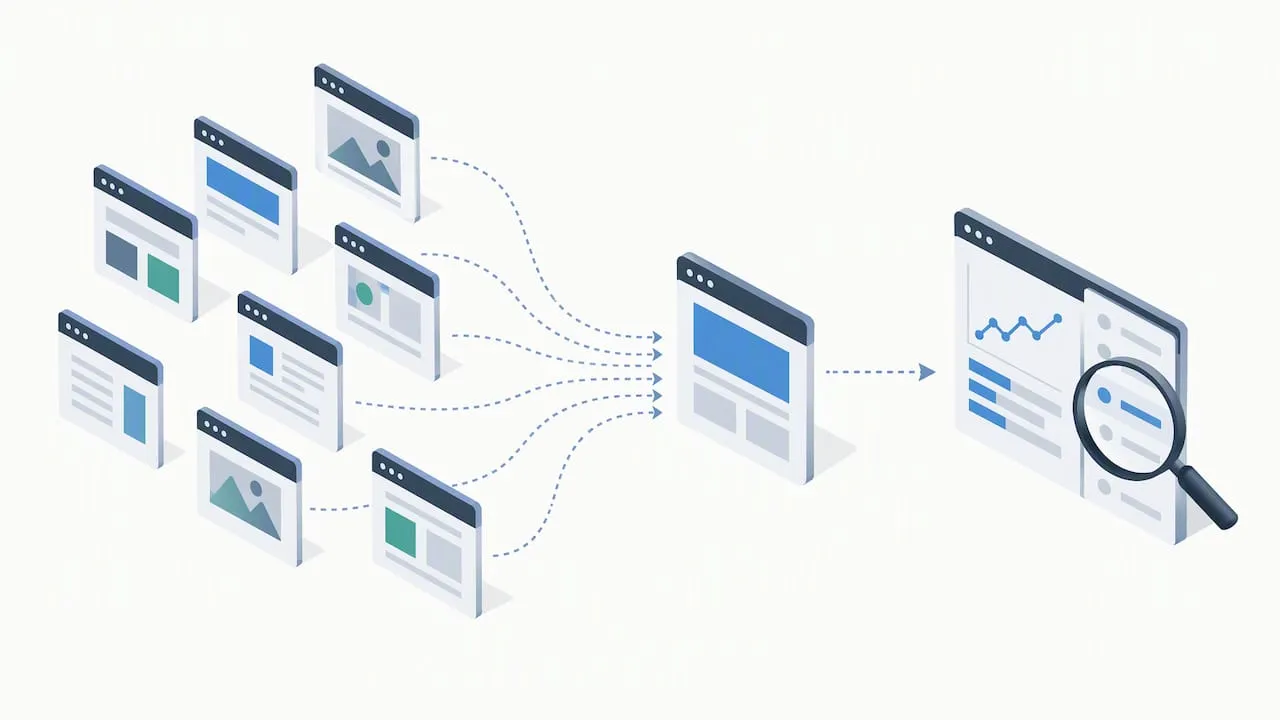
Use field data (real user monitoring, or RUM, plus Chrome’s public CrUX dataset) to decide which pages and metrics deserve attention. Use lab tools to isolate causes under controlled conditions. WebPageTest is strong here: its traces and waterfalls show exactly which resources delay LCP.
A reproducible workflow:
- Install the
web-vitalslibrary in production and send LCP, INP and CLS values to your analytics endpoint. - Segment results by route and device class to find the worst page.
- Reproduce that page in Lighthouse or WebPageTest with mobile settings.
- In DevTools, record a trace of both load and a typical interaction, following the Chrome DevTools Performance reference.
- Apply CPU throttling, then read the flame chart to find main-thread hot spots and long tasks.
Pro Tip: Always throttle the CPU when profiling. A fast development laptop can make a slow render appear much faster than it does on a mobile device, so you may miss the problem your users hit.
How do you shrink the JavaScript your users download first?
Initial JavaScript is usually the largest controllable cost. Every kilobyte must be downloaded, parsed and executed before the page becomes interactive, which delays both LCP and INP.
Run a bundle analyzer (webpack-bundle-analyzer, or the equivalent for your build tool) and look for two things: oversized entry chunks and dependencies that are far larger than the feature they power. A date library or charting package pulled into the main bundle is a common culprit.
Then apply these tactics:
- Split by route and by feature. Use dynamic
import()withReact.lazyso a user loading the home page never downloads the admin dashboard. - Import narrowly. Pulling one function through a barrel file can drag in an entire library. Import from the specific module path instead.
- Lazy-load noncritical components such as modals, rich text editors and below-the-fold widgets.
- Defer third-party scripts like chat widgets and tag managers until after the page is interactive.
- Remove dead code. Tree-shaking only works with ES modules and side-effect-free packages, so check your dependencies’
sideEffectssettings.
The webpack documentation covers bundling and delivery options, and its code-splitting guide walks through dynamic imports and entry-point splitting. Add content-hashed filenames so browsers cache unchanged chunks across deploys. Recommended React/Next.js performance guidance, such as this prioritized rule set, also ranks bundle size reduction among the highest-impact actions.
How do you use the React Profiler to find expensive renders?
Open the Profiler tab in React DevTools, start recording, perform the slow interaction, and stop. The React Profiler records render timings per component, so you can see which commits are expensive and which components re-rendered without any visible change. React’s official performance documentation recommends exactly this: profile, then minimize unnecessary work.
Read the flame graph from the widest, warmest bars. Then check the “why did this render” information for the top offenders.
Apply targeted fixes:
React.memofor components that re-render with identical props, especially expensive ones deep in a tree.useMemofor genuinely costly computations. Wrapping cheap calculations adds comparison overhead and gains nothing.useCallbackonly when a stable function reference prevents a memoized child from re-rendering.- Virtualization for long lists. Rendering a very long list is the problem; no amount of memoization fixes it.
- Component splitting so state changes re-render a small subtree instead of a whole page.
useTransitionanduseDeferredValueto keep typing and clicking responsive while heavy updates finish in the background.
Memoization can backfire. If props change on every render anyway, React.memo adds work without saving any. Confirm each change with a second Profiler recording.
Pro Tip: Fix the top three heaviest components, then re-profile. Rendering costs follow a steep curve, and the long tail rarely justifies the added code complexity.
Which server and data-fetching patterns hurt load time?
Sequential data fetching is the classic server-side offender. When component B waits for component A’s request before starting its own, the waits stack up and push LCP later. You can spot these waterfalls in a WebPageTest trace or a server timing log as staircase-shaped request chains.
Restructure the fetch flow:
- Parallelize independent requests with
Promise.allinstead of awaiting them one at a time. - Use Suspense boundaries so a slow section streams in later instead of blocking the whole page.
- Hoist static I/O to module level so configuration files, fonts or lookup tables are read once, not on every request.
- Trim serialized props. Passing a full database record across the server/client boundary bloats the HTML. Send only the fields the client component renders.
A prioritized React performance rule set from Vercel’s agent-skills repository lists eliminating waterfalls as a top-priority action, and our experience building custom React frontends matches that ordering.
How do you keep runtime interactions smooth?
Think in frame budgets. At 60 frames per second, each frame has a limited time budget. Anything that blocks the main thread longer than that drops frames and hurts INP. The DevTools Performance panel flags long tasks in red, so start there.
Practical rules:
- Batch DOM reads and writes. Alternating them forces the browser to recalculate layout repeatedly, known as layout thrashing.
- Animate
transformandopacity. They avoid layout and can run on the compositor, unlike width, height or top. - Shrink paint areas by promoting only elements that truly animate to their own layers.
- Mark scroll and touch listeners as passive so the browser never waits on your handler to scroll.
- Defer noncritical work with
requestIdleCallbackor a post-response callback so analytics and prefetching never compete with a user’s tap.
What should you fix first? A prioritized checklist
Run this in order during a performance sprint. Quick wins come first.
- Enable text compression (Brotli or gzip) and set long cache lifetimes on hashed static assets.
- Remove unused code and audit large libraries, lazy-loading anything not needed for first paint.
- Record a Profiler trace, pick the top three heavy components, fix them and retest.
- Run the bundle analyzer and split the biggest chunk.
- Audit server fetching, find waterfalls and parallelize them.
- Retest in Lighthouse and WebPageTest, then watch field data until the 75th percentile moves into the good range.
A lab improvement alone proves little. Wait for field data to confirm the change reached real users.
Why we start every performance engagement with measurement
Most slow React sites do not need a rewrite. They need someone to look at the traces before touching the code, and that is how we work: audit first, rank the findings by impact, then fix them in order. In our custom React frontends, that usually means the bundle and the data fetching, not clever micro-optimizations.
The checklist above is enough for a team with spare engineering time and a habit of re-measuring. If performance keeps losing to feature work, a managed team removes the bottleneck. Hand it off when regressions return after every release, or when nobody owns the field data. Keep it in-house when your team already profiles on every pull request.
- Jeremy
How we can help you keep React performance on track
If you would rather have specialists handle this, we run measurement-first performance work as an ongoing service. Our Performance Plus plan is $750 per month, alongside Webmaster at $250 per month and Managed Hosting at $99 per month. Together they provide support for the site you already have.

Want to know where your site stands first? Request a performance audit to learn what is holding your site back. Prefer to see the full range of what we build? Browse our services, then book your audit through our maintenance page.
FAQ
What is a good LCP score for a React app?
A good LCP is 2.5 seconds or less, measured at the 75th percentile of page loads, according to web.dev’s threshold definitions. If yours is higher, check TTFB and the size of your initial JavaScript first.
How do I find unnecessary re-renders in React?
Record an interaction in the React Profiler and look at which components rendered without a visible change. React’s performance documentation recommends profiling to find that wasted work before reaching for memoization.
Does code splitting actually improve React load times?
Yes, when it removes code the first page does not need. Dynamic imports let users download features on demand, which cuts the initial payload that delays interactivity. Verify the gain with a bundle analyzer and a fresh trace.
Should I wrap every component in React.memo?
No. Memoization only pays off when props are stable and the render is expensive. Wrapping everything adds comparison overhead and clutters the code, so apply it where the Profiler shows repeated, costly renders.
Lab data or field data: which one should I trust?
Trust field data to tell you whether users have a problem and lab data to explain why. Lab runs are repeatable but synthetic, while field data reflects real devices and networks. Use both, in that order.