GA4 Conversion Tracking: A Practical Setup and Fix Guide

In GA4, a conversion is a key event - one event you have flagged as your confirmed measure of success. The immediate action: pick the single technical condition that proves a lead or sale happened, implement it as one reliable event, verify it fires correctly, and mark it as a key event.
The high-level flow is short:
- Implement the event through one method (gtag.js, Google Tag Manager, or server-side).
- Verify it in GA4 DebugView before trusting a single row of data.
- Mark it as a key event, then import it into Google Ads if you’re bidding on it.
You can mark up to 30 key events per property (50 for GA360), and GA4 auto-flags a few by default, like purchase, according to Google’s own migration guidance. That ceiling matters more than it looks. Sloppy setups burn through it fast with duplicate or near-duplicate events, leaving no room for the ones that actually run your ad spend.
Key Takeaways
Reliable GA4 conversion tracking depends on wiring one confirmed event per outcome, verifying it end-to-end, and reconciling it against real CRM data before it drives ad bidding.
| Point | Details |
|---|---|
| One event, one source | Pick a single implementation method per conversion to avoid duplicate counts. |
| Distrust Enhanced Measurement for forms | Disable automatic form tracking once a custom event or dataLayer push is in place. |
| Register parameters early | Custom dimensions can take up to 48 hours to populate reports, plan launches around it. |
| Verify beyond GTM Preview | A green Preview check only proves the tag fired, not that GA4 received it. |
| Expect Ads and GA4 to differ | Attribution models and conversion windows explain most cross-platform mismatches. |
Table of Contents
- How Do You Set Up GA4 Conversion Tracking Correctly?
- Which GA4 Event Type Should You Trust for Conversions?
- How Do You Name Events and Set Up GA4 Tracking Parameters?
- What’s the Best Way to Implement GA4 Events?
- How Do You Fix Broken GA4 Form Tracking?
- How Do Key Events Become Google Ads Conversions?
- How Do You Validate That Conversion Tracking Actually Works?
- Why Are My GA4 Conversion Numbers Wrong?
- Forefront Industries’ Take on Getting This Right the First Time
- Get Conversion Tracking Built Right the First Time
- Editorial Take: What Actually Matters Here
- Sources
How Do You Set Up GA4 Conversion Tracking Correctly?
Before touching any code, run this checklist. Skipping steps here is the number one reason conversion data looks fine in testing and wrong three weeks later.
- Define the business outcome first. A “lead” isn’t an event name, it’s a decision: is it form submission, phone click, chat completion, or CRM stage change?
- Translate that outcome into a technical success condition. A thank-you page load, an AJAX success response, or a backend record write are all different signals with different failure modes.
- Pick one event name and its required parameters. Decide this before you open Tag Manager, not while you’re configuring triggers.
- Choose a single implementation method for that event, gtag.js, GTM, or server-side, and don’t let two methods fire it in parallel.
- Verify in DebugView, then reconcile against your CRM or inbox count before you ever use the event for bidding decisions.
Pro Tip: Write your event name and parameter list in a shared doc before opening GTM. Half of all “duplicate event” cleanups trace back to two people implementing the same conversion independently because nobody wrote down the plan.
This is GA4 form tracking and event tracking setup in miniature. Get these five decisions right and the rest of the guide is mostly a longer explanation of the same logic.
Which GA4 Event Type Should You Trust for Conversions?
GA4 groups events into four categories, and knowing which one you’re leaning on changes how much you should trust the data.
- Automatically collected events fire without any setup, page views, session starts, first visits. Useful for context, unreliable as a conversion signal because you can’t control what triggers them.
- Enhanced measurement events extend that automatic layer to scroll depth, outbound clicks, site search, video engagement, and form interactions. Convenient, but the form interaction event in particular is widely unreliable for modern AJAX-driven forms and tends to overcount, according to practitioner testing at Trackstack. Treat it as a smoke test, not a source of truth.
- Recommended events are Google-defined names like
generate_leadorpurchasewith expected parameter sets. Use these where they fit your use case; GA4’s own reporting templates and Google Ads’ conversion mapping both expect them. - Custom events are anything you name and structure yourself. Necessary when no recommended event covers your outcome, but every custom event needs its own parameter plan or it shows up in reports with no usable detail.
This is a structural break from Universal Analytics, where goals were a reporting-layer wrapper around pageviews or events. GA4 has no separate “goal” object. Every conversion metric in GA4 is just an event you’ve flagged as important, according to Google’s guidance on migrating goals to GA4. If you’re coming from UA, this is the mental model shift that trips up most teams: stop thinking “set up a goal” and start thinking “wire an event correctly, then flag it.”
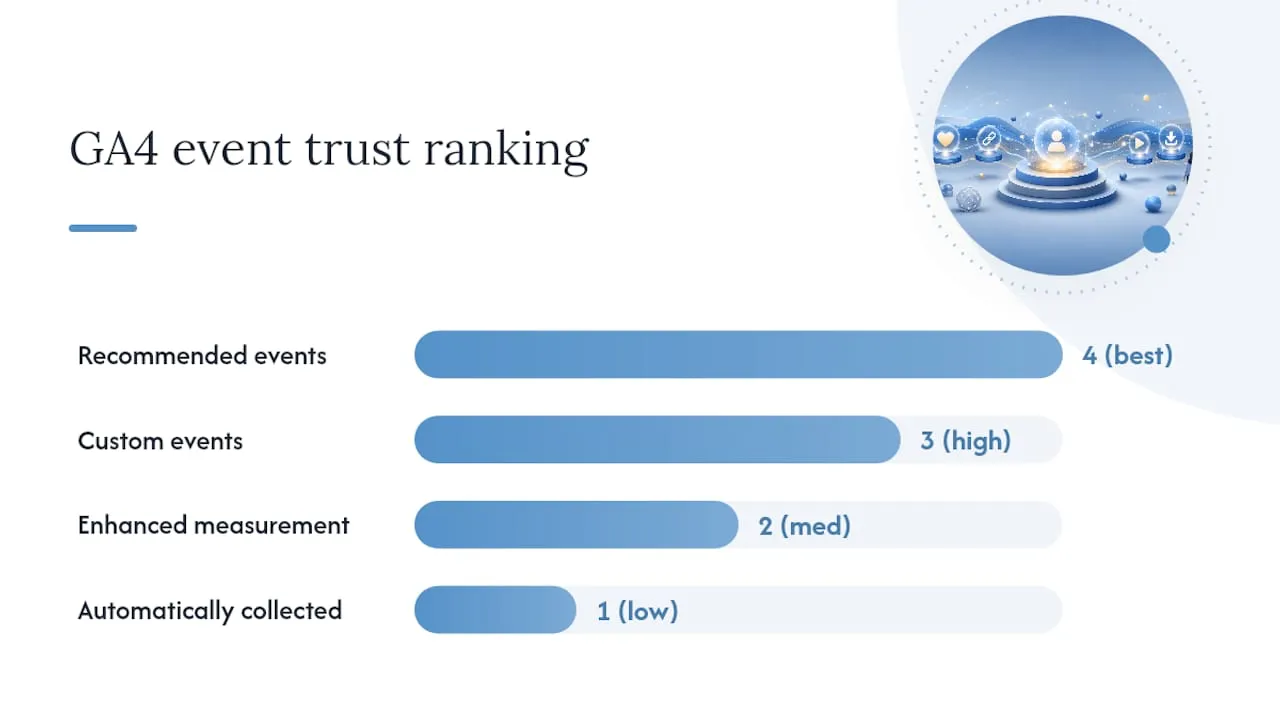
For anything tied to revenue or lead quality, the ranking is simple: recommended events with correct parameters beat custom events, which beat enhanced measurement, which beats relying on automatically collected events alone.
How Do You Name Events and Set Up GA4 Tracking Parameters?
Event naming feels like a minor decision until you’re six months in with lead_submit, form_submitted, and contact_lead all measuring the same thing across three properties. Pick one naming convention and document it before your first tag goes live.
Where a recommended event name fits, use it, generate_lead for form conversions, purchase for transactions, sign_up for account creation. Google Ads and GA4’s own reports are built around these names, so you get standard reporting without extra configuration.
For the parameters themselves, match the event to its purpose:
- Lead generation events should carry
value,currency,form_type, andpage_locationat minimum, enough to segment lead quality by source without needing a second tool. - Purchase and ecommerce events need
transaction_id,value,currency, and anitemsarray following GA4’s structure, so revenue reporting doesn’t come back with missing fields, per Google’s Measurement Protocol reference. - Any parameter you want to filter or segment by in standard reports has to be registered as a custom dimension or metric. GA4 collects the parameter automatically, but it stays invisible in reporting until you register it, and new custom dimensions can take up to 48 hours to populate, according to Google’s developer documentation.
That 48 hour lag catches teams off guard constantly. Launch a campaign Monday, register the custom dimension Tuesday, and don’t panic when Wednesday’s report still shows blanks, it’s propagation delay, not a broken tag.
Pro Tip: Include a stable identifier, an order ID, a CRM lead ID, a session ID, in every conversion event’s parameters. It’s the single easiest way to deduplicate events later and reconcile GA4 counts against your CRM without guessing which row matches which lead.
Design choices here also affect deduplication. If your thank-you page and your form’s AJAX callback both fire the same event with no distinguishing parameter, you can’t tell a genuine double-submit from a tracking bug. Build the identifier in from day one.
What’s the Best Way to Implement GA4 Events?
You have three real implementation paths, and they’re not interchangeable, they trade off control, speed, and reliability differently.
1. gtag.js, direct code on the page, gives you the most control with the least tooling overhead. A basic event call looks like gtag('event', 'generate_lead', {value: 1, currency: 'USD', form_type: 'contact'}). Set shared values, like currency or a client ID, as global parameters once, and keep per-event details, like form_type, scoped to the individual call. This path suits teams comfortable editing template code directly and wanting zero dependency on a tag management layer.
2. Google Tag Manager is the more common choice for marketing teams because it separates tracking logic from the codebase. The trigger you pick determines reliability:
- Page View trigger works only when a distinct thank-you page exists, the simplest and most reliable pattern when available.
- Element Visibility trigger catches confirmation messages that appear without a URL change, common on single-page checkouts.
- Form Submit trigger works for standard HTML form posts but frequently misses AJAX-based forms that submit without a full page reload.
- Custom Event trigger listens for a
dataLayer.push()you control directly, the most reliable option for JavaScript-heavy forms because you decide exactly when success is confirmed.
Map each trigger to a GA4 Event tag rather than relying on GTM’s own automatic form listener. Firing a GA4 Event tag on a validated trigger, confirmed AJAX success or a genuine thank-you page load, is the preferred pattern for high-stakes lead generation, according to Google Tag Manager’s own documentation.
3. Server-side tracking or the Measurement Protocol sends the event directly from your backend once it has actually received and stored the lead. This is the strongest option when reliability matters most, checkout flows, high-value B2B forms, anything where a lost conversion means lost revenue. Fire the event at the moment your server persists the record, attach a stable transaction or lead ID, and you get clean deduplication even if the client-side tag also fires.

Whichever method you pick, avoid running two of them on the same event simultaneously. The most common inflation bug in GA4 properties isn’t a broken tag, it’s two working tags firing the same conversion from different layers.
How Do You Fix Broken GA4 Form Tracking?
Forms break conversion tracking more than any other single element on a site, mostly because teams default to GTM’s Form Submit trigger without checking whether the form actually posts the traditional way.
Work through this decision order:
- Thank-you page exists and loads on success? Use a Page View trigger. No JavaScript needed, nothing to maintain.
- No dedicated URL, but a visible confirmation message appears? Use Element Visibility targeting that confirmation element’s CSS selector.
- Form submits via AJAX with no visible page change and no reliable confirmation element? Push a custom event to the dataLayer at the exact point your JavaScript confirms success, then trigger off that Custom Event in GTM.
Embedded forms, HubSpot iframes, Typeform overlays, add another layer of difficulty because you don’t control the submission code. Most of these platforms expose a callback or postMessage event specifically for this reason; use it to fire your dataLayer push rather than guessing at visibility triggers.
Two failure patterns show up constantly. GTM’s Form Submit trigger silently misses forms that use AJAX instead of a full-page post, so the trigger simply never fires. And Enhanced Measurement’s automatic form interaction tracking can overcount, firing on validation errors or partial interactions, creating a second inflated count that contradicts your custom event, according to testing published by Trackstack. If you’ve built a custom form event, turn Enhanced Measurement’s form tracking off. Running both invites double counting.
Pro Tip: A green check in GTM Preview only confirms the tag fired, not that GA4 received it. Always follow Preview with a DebugView check and, at least once, a real CRM reconciliation, matching an actual form submission against an actual event, before you trust the number for reliable lead flows.
How Do Key Events Become Google Ads Conversions?
Once an event is verified, mark it as a key event in GA4’s Events configuration, a toggle, not a rebuild. From there, Google Ads can import it directly as a conversion action for bidding.
A few mechanics catch people off guard:
- Some settings live in GA4, not Ads. Conversion window length and counting method (one per click vs. every conversion) are often controlled back in the Analytics interface and stay read-only once imported into Ads, according to Google’s own integration documentation.
- Attribution settings shift what gets credit. GA4’s default data-driven attribution model can assign credit differently than Ads’ last-click legacy reporting, so don’t expect the two platforms to agree to the dollar.
- Discrepancies are normal, not automatically a bug. Different attribution windows, different bot filtering, and consent-based gaps between the two systems all produce mismatches. Investigate a discrepancy by checking date ranges and attribution models before assuming the tag is broken.
Expect Ads and GA4 numbers to differ by some margin even in a clean setup. The investigation only becomes urgent when the gap is large or growing.
How Do You Validate That Conversion Tracking Actually Works?
Treat validation as a sequence, not a single check. Each stage catches a different class of failure.
- Run GTM Preview and confirm the intended tag fires on the intended trigger, and only that tag.
- Open GA4 DebugView in a separate tab and confirm the event arrives with the parameters you expect attached, not just that an event of some name showed up.
- Check Realtime reporting a few minutes later to confirm the event is visible outside the debug session too.
- Inspect the network request payload directly when parameters look wrong in DebugView, this is often the fastest way to spot a typo in a variable name.
- Reconcile against your CRM or inbox for a real day of traffic. If GA4 shows 40 leads and your CRM logged 34, that gap is your actual data quality number, not the DebugView green check.
A GTM Preview success is necessary, but it isn’t proof the event reached GA4, consent blocking, ad blockers, or a parameter typo can all cause silent gaps between a firing tag and a recorded event, a pattern documented by Amplio Data’s implementation walkthroughs.
Pro Tip: Test with consent denied and consent granted separately, and on at least one mobile browser with tracking protections enabled. A setup that looks perfect on desktop Chrome with cookies accepted can silently under-report by double digits once real-world consent and browser conditions apply.
Why Are My GA4 Conversion Numbers Wrong?
Most reporting problems trace back to one of four causes.
- Double counting. If Enhanced Measurement’s automatic form tracking is on alongside a custom event for the same form, disable the automatic version, it’s almost always the redundant one.
- Missing AJAX submissions. If a Form Submit trigger shows zero fires on a form you know converts, the form almost certainly uses AJAX. Switch to Element Visibility or a dataLayer push instead of debugging the same trigger further.
- Parameter values missing in reports. If a parameter shows in DebugView but never appears in a standard report, it hasn’t been registered as a custom dimension or metric yet, and even after registering it, allow up to 48 hours before checking again.
- GA4 and Ads numbers don’t match. Before assuming a tracking bug, check time zone settings, attribution model, and conversion window differences between the two platforms, these explain the large majority of mismatches on their own.
Forefront Industries’ Take on Getting This Right the First Time
Forefront Industries applies the same four-step discipline to every client’s conversion setup: define the real business outcome, implement it through a single confirmed source, verify end-to-end, then reconcile against the CRM before anyone trusts the number for bidding.
Most “bad lead quality” complaints aren’t a targeting problem. They’re a measurement problem wearing a targeting problem’s clothes.
Call in a specialist when you’re dealing with single-page application routing that breaks standard pageview logic, enterprise CRM field mapping into GA4 parameters, or server-side reconciliation across multiple systems. Below that complexity threshold, a careful team following this checklist can wire it correctly without outside help.
Get Conversion Tracking Built Right the First Time
Fixing conversion tracking after the fact means rebuilding trust in months of bad data along with the tags themselves. If your site runs on a custom-coded frontend, a single-page application, or an enterprise CRM stack, that rebuild gets harder fast, generic tagging advice assumes a simple WordPress form, not a React checkout flow synced to Salesforce Marketing Cloud.
Forefront Industries builds custom web design and development with conversion tracking wired in from the first line of code, not bolted on after launch. If your current setup is throwing inconsistent numbers between GA4 and your CRM, or your Ads account is bidding on inflated lead counts, that’s worth a direct conversation before your next campaign cycle starts.
Editorial Take: What Actually Matters Here
The industry’s obsession with tool selection, gtag versus GTM versus server-side, misses the actual point. The method matters far less than whether you can prove, with a CRM in one tab and DebugView in the other, that every recorded conversion corresponds to a real event. Most broken setups aren’t using the “wrong” tool. They’re using any tool without a verification step attached.
Conventional advice treats a green Tag Assistant check as the finish line. It’s the midpoint. A tag firing correctly and an event landing correctly in GA4 with the right parameters, then matching your actual CRM count, are three separate claims, and most guides only verify the first one.
If you fix one thing after reading this, fix that. Pick a single confirmed success signal, wire it once, and don’t call it “done” until CRM numbers and GA4 numbers actually agree. Everything else, naming conventions, parameter design, attribution windows, is refinement on top of that foundation, not a substitute for it.
- Jeremy